
Report leaks from your browser
Add Fanlock Content Reporter to Chrome on your computer. Google capture requires a paid Fanlock plan, completed identity verification, and signed authorization.
Send us the leaks you find while browsing
You search your stage name and spot a copy of your work. With the Fanlock Chrome extension, you can select that result on Google, check the URL, and send it to your Fanlock account. If you find several links, you can submit them together.
Use it to report copies of your own photos, videos, or paid posts, including content from OnlyFans, Fansly, Fanfix, or Patreon. Before sending, check that the result contains unauthorized copies of your work. A matching name alone does not make a result a leak.
The screenshots in this guide come from our Chrome Web Store listing. They demonstrate the controls, not infringement by the people or sites shown.
1. Install the extension and sign in
- Open Fanlock Content Reporter in the Chrome Web Store on your computer.
- Choose Add to Chrome, review the permissions, and confirm the installation.
- Open Chrome's Extensions menu and pin Fanlock so you can reach it from the toolbar.
- Open Fanlock and sign in with the account you use for your dashboard.
New to Fanlock? Create an account first. To use Google capture, you need a paid plan and must complete identity verification and sign the authorization in your dashboard. If Chrome blocks installation, follow Google's extension installation guide.
2. Select leaked content in Google Search
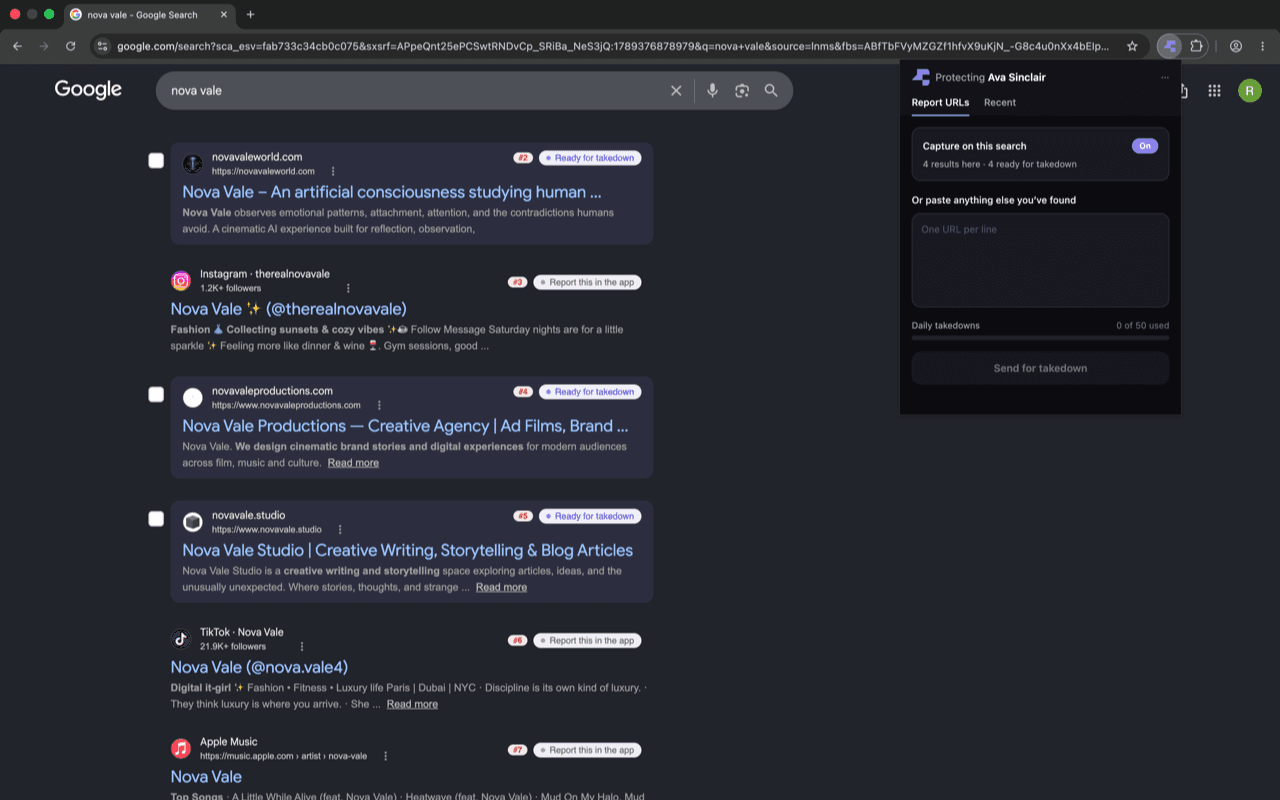
Search Google for your stage name or a username you publish under. Open the extension and check that Capture on this search is on. You can then use the checkboxes beside supported results to choose the links you want to report.
Reload the Google page after enabling capture. If the extension does not recognize the search, choose Scan this page for leaks in the popup.
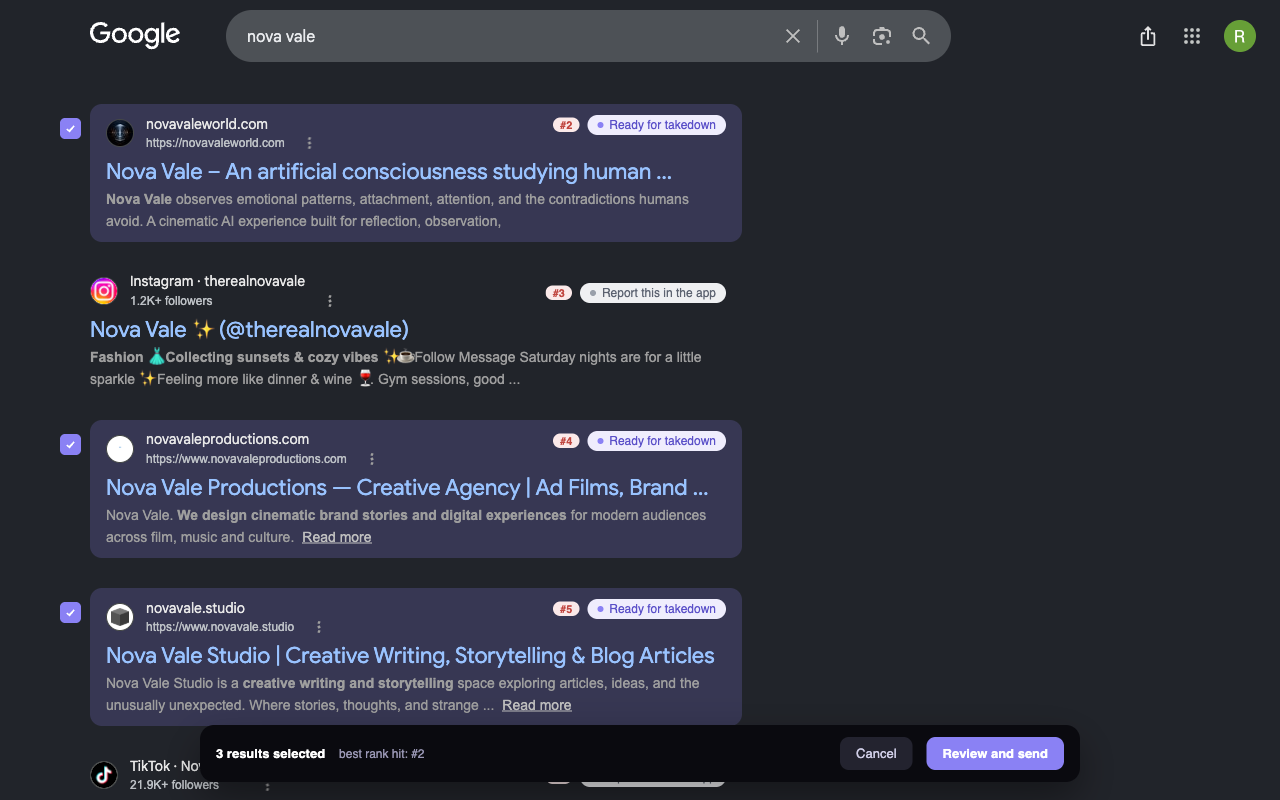
In the example below, the purple highlights show three selected results. The bar at the bottom keeps a count and gives you a Review and send button. Leave your own profiles, authorized reposts, and unrelated results unselected.
3. Check Google Images, too
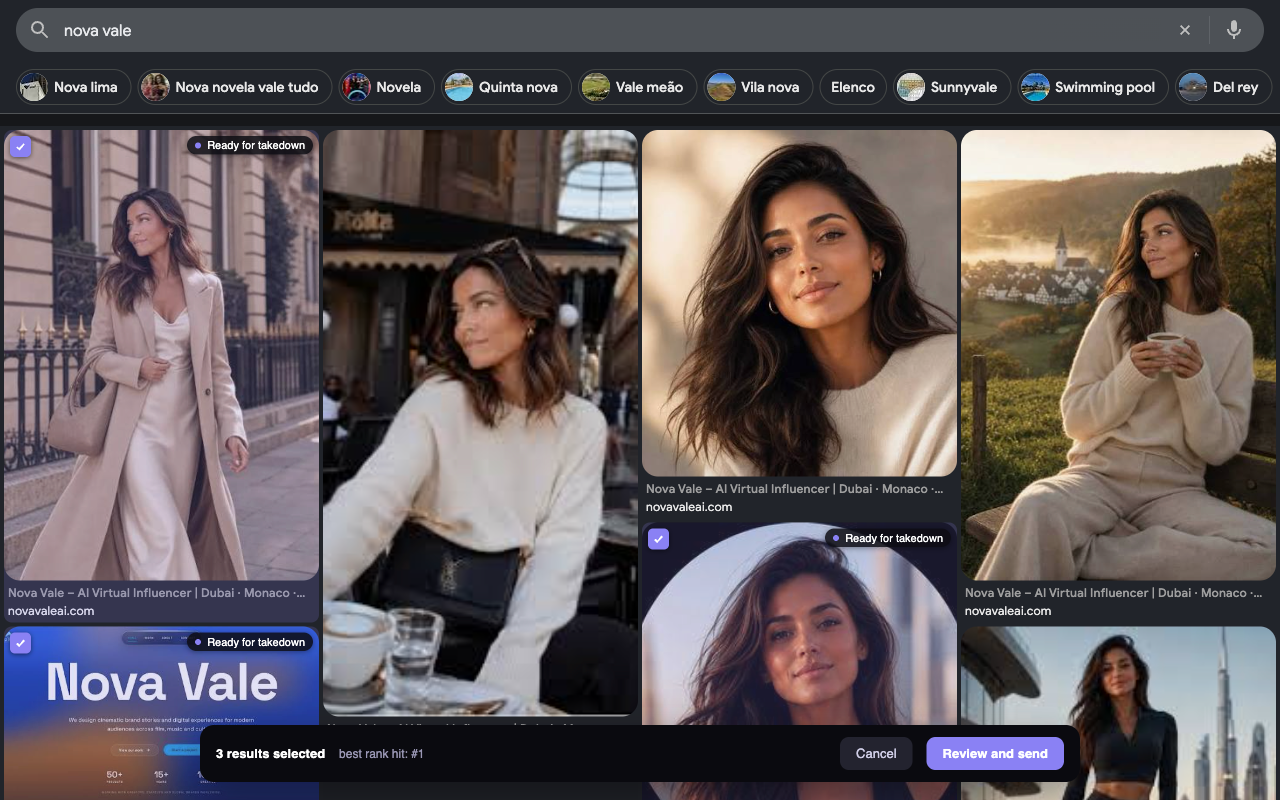
Switch to Google Images to check the photos that appear for your name. The extension adds selection controls to supported image results, so you can choose the images you recognize and review their links before sending.
Check where each image links. An official profile or a post you approved can appear beside an unauthorized copy of the same photo. Select the result that points to the unauthorized copy.
4. Review the URLs and send your report
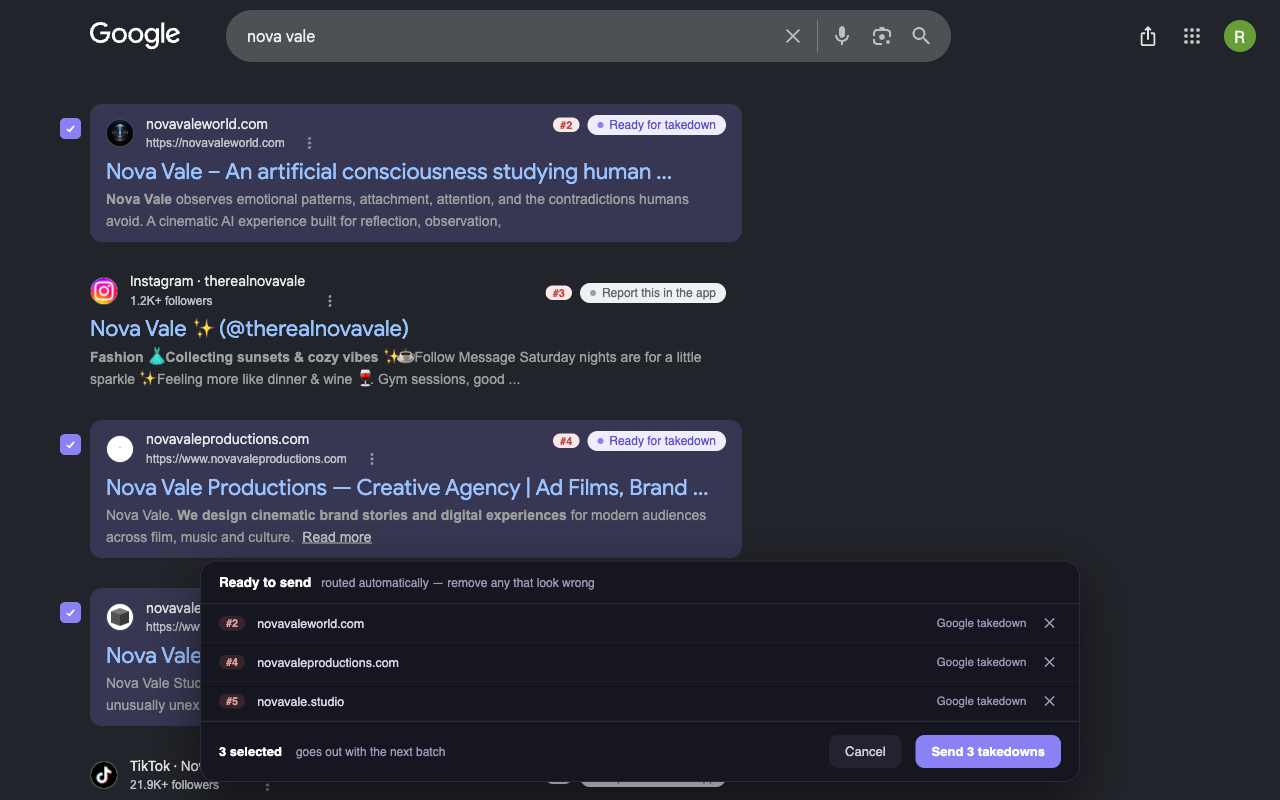
Choose Review and send to see the list before you submit it. Check the destinations and remove any result you selected by mistake using the × beside its URL. When the list is correct, press the send button. In this example, it reads Send 3 takedowns.
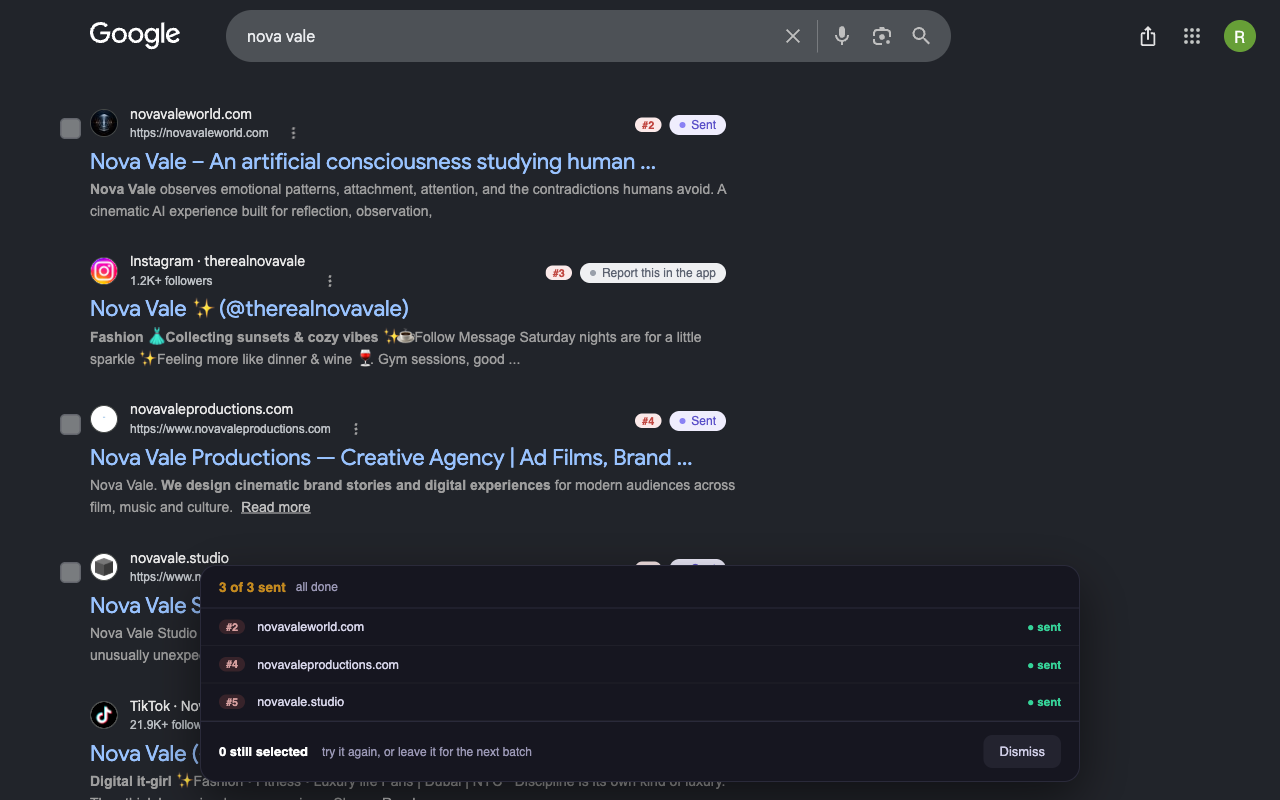
Check your submission and follow progress
After submission, check the confirmation for the links that went through. If any remain unsent, review the message before trying again. You can follow removal progress in your Fanlock dashboard.
Google reporting and what happens next
We use the links you submit for removal requests to Google. Google processes those requests before a result can come out of Search. Submission does not guarantee a removal or a fixed turnaround time.
Google delisting removes a search result; the source website can still host the file. Google explains that distinction here. Our Google takedown guide covers search removal, and our leaked content removal service explains how we address the sites hosting copies.
Send X, Reddit, Instagram, and TikTok links through Submit URL in your dashboard. If a Google result says Report this in the app, use that dashboard workflow. This extension guide covers Google Search and Images.
You choose which links to report. For details about extension access and data handling, see the Chrome Web Store listing and our privacy policy.
Common questions about the Fanlock Chrome extension
What is Fanlock Content Reporter?
Fanlock Content Reporter is a Chrome extension for sending leaked-content links to Fanlock from Google Search and Google Images. You select the results, review the URLs, and submit them using your Fanlock account.
Do I need a Fanlock account to use the extension?
Yes. Google capture requires a paid Fanlock plan, completed identity verification, and signed authorization. Sign in with the account you use for your dashboard. Installing the extension does not replace those requirements.
Can I report several Google results at once?
Yes. Select the relevant results, choose Review and send, and check the list before submitting. You can remove a URL from the review panel if you selected it by mistake.
Does the extension report Instagram, X, Reddit, or TikTok posts?
Use Submit URL in your Fanlock dashboard for social platform links. The extension walkthrough covers Google Search and Google Images. Results marked Report this in the app should go through the dashboard.
Does Sent mean the content has been removed?
No. Sent confirms submission to Fanlock. Google still needs to process a removal request. Check your Fanlock dashboard for progress. Removing a result from Google does not delete the content from the website hosting it.
Report the next leak where you find it
Add Fanlock Content Reporter to Chrome, sign in, and send us the Google results you want to report. You can review every link before submitting your report.
Sources
Product screenshots and instructions checked September 23, 2026.
- Fanlock Content Reporter on the Chrome Web Store — Extension listing and all five product screenshots.
- Google Chrome Help: install and manage extensions
- Google Legal Help: search removal and source websites